
You captured a shot with massive potential, but something holds it back—a photobomber ruining the background, harsh midday shadows hiding a face, or a flat sensor that washed out vibrant colors. Great framing gets you halfway there, but the right post-processing software bridges the gap between a decent snapshot and a frame-worthy image.
Photo editing software has split into distinct specializations. Some tools focus on surgical pixel manipulation, others rely on neural networks to trim editing time, and browser-based apps deliver high-grade features without requiring a dedicated graphics card. Here are the best photo editing and retouching tools available today, categorized by how you work and what your images need.
Desktop Heavyweights for Pixel-Perfect Retouching
When an image requires surgical precision—such as reconstructing textures, manipulating individual hair strands, or combining multiple exposures into a seamless composite—standard slider-based editors fall short. You need raster graphics software that operates at the individual pixel level through layered workflows.
Adobe Photoshop
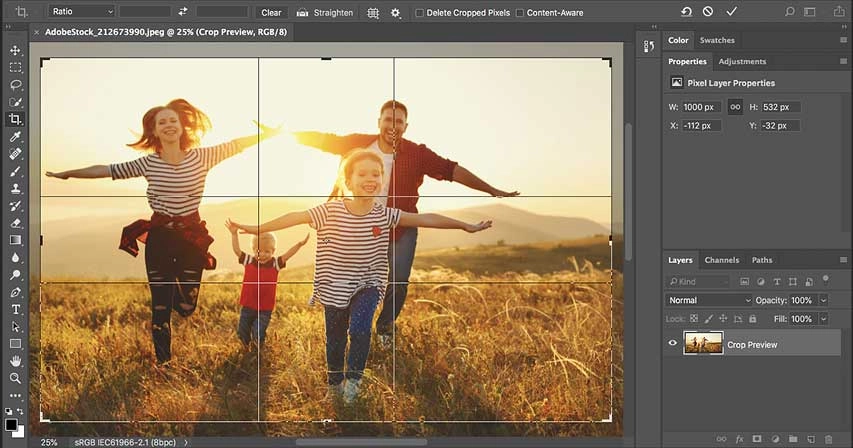
Adobe Photoshop remains the undisputed gold standard for professional retouchers and digital artists. Its strength lies in its non-destructive layer architecture, comprehensive masking capabilities, and advanced color channels. For portrait photography, Photoshop makes complex techniques like frequency separation—splitting texture from tone to smooth skin while preserving natural pores—reliable and precise.
Recent updates integrate Adobe Firefly generative AI, enabling you to expand canvases, remove complex distractions, and generate photorealistic elements using text prompts. Combined with industry-grade clone stamp algorithms, customizable curves, and 32-bit color channel support, it provides total control over every element in your frame.
Affinity Photo
Developed by Serif, Affinity Photo is the leading alternative to Photoshop. Built for modern hardware, it leverages Metal acceleration on macOS and multi-threading on Windows to process heavy RAW files and complex multi-layered documents with minimal lag.
Affinity Photo operates through dedicated “Personas”—tailored workspaces for photo editing, RAW development, liquify warping, tonemapping, and export slicing. It includes native frequency separation filters, live non-destructive filter layers, and robust brush engines. It sells as a perpetual, single-purchase license, making professional raster editing accessible without a subscription.
Best fit for desktop heavyweights
These tools are built for creators who need fine-grained control over individual pixels, complex selections, commercial beauty retouching, and multi-image composites. If your work involves detailed blemish removal, background swaps, or heavy layer manipulation, desktop powerhouses are non-negotiable.
Smart All-in-One Editors for Streamlined Workflows
Not every photo needs hours of pixel surgery. Event, landscape, and travel photographers frequently need to process hundreds of RAW files from a single session. All-in-one editors merge database asset management with rapid global adjustments and automated corrections.
Adobe Lightroom
Lightroom (available as catalog-based Lightroom Classic or cloud-centric Lightroom) is the industry’s default batch-processing engine. Its non-destructive editing pipeline preserves original RAW data while tweaking exposure, balancing highlights and shadows, and applying consistent color grading across large photo sets.
Lightroom’s masking engine uses machine learning to automatically detect subjects, skies, backgrounds, and specific facial features like teeth, irises, and skin tones. This lets you apply targeted contrast or sharpness adjustments across an entire shoot in a few clicks. Its library module simplifies organization using star ratings, color labels, keywords, and smart collections.
Luminar Neo
Skylum’s Luminar Neo approaches photo editing through algorithmic automation, solving complex post-processing problems in seconds. Tools like Sky AI replace overcast skies while automatically relighting the foreground to match the new light source, including reflections in water.
For portraiture, Luminar Neo provides dedicated AI modules that remove skin shine, smooth complexions without destroying pore texture, accentuate irises, and add realistic volumetric bokeh to flat backgrounds. It functions both as a standalone application and as a plugin for Photoshop and Lightroom.
Best fit for all-in-one editors
These suites are ideal for photographers who need to organize, color grade, and enhance large volumes of photos quickly. They emphasize speed, visual consistency across photo sets, and automated assistance over manual pixel manipulation.
Powerful Free and Open-Source Alternatives
High-end digital manipulation does not require an expensive software budget. The open-source community maintains exceptional, fully featured image editors that rival commercial tools in technical depth.
GIMP (GNU Image Manipulation Program)
GIMP is the most capable free desktop image editor available. It provides a full layer-and-mask workflow, advanced transformation tools, custom brush engines, and a comprehensive suite of selection options. For detailed retouching, GIMP includes reliable healing, cloning, and perspective correction tools.
The software supports a wide range of third-party plugins and Python scripts to expand its capabilities. While its user interface has a steeper learning curve than commercial software, it delivers comprehensive manipulation tools for zero financial investment.
Darktable
Darktable functions as an open-source, non-destructive RAW developer and digital asset manager, mirroring the core workflow of Lightroom. It utilizes a scene-referred color management pipeline, giving editors precise control over dynamic range and color spaces.
Darktable’s module system lets you manage tone curves, correct chromatic aberrations, denoise high-ISO files, and apply parametric masks with surgical accuracy. It runs across Linux, macOS, and Windows, offering a transparent development model that keeps your workflow independent of subscription services.
Best fit for open-source tools
These applications are perfect for budget-conscious creators, open-source advocates, and Linux users who are willing to master technical interfaces in exchange for full creative freedom without recurring fees.
Fast Web and Mobile Apps for Editing on the Go
Modern smartphone cameras produce high-resolution files that often need only a few deliberate adjustments. Mobile and browser-based editors let you refine images quickly without transferring files to a desktop workstation.
Snapseed
Google’s Snapseed remains one of the most capable free mobile photo editors on iOS and Android. It pairs touch-optimized gesture controls with advanced editing tools. Its standout feature is the “Selective” tool, powered by Nik Software’s U Point technology, which places targeted adjustment points on specific areas to alter brightness, contrast, and saturation without manual masking.
Snapseed also features a reliable Healing tool for spot removals, Curves adjustment layers, Expand tools to generate extra canvas padding, and a Perspective correction engine that straightens skewed architectural shots effortlessly.
Photopea
Photopea is an advanced, web-based raster editor created by developer Ivan Kutskir. Running entirely in your web browser via WebGL, it mirrors the exact workspace, keyboard shortcuts, and layer hierarchy of Photoshop. It requires no installation and opens native PSD, XCF, RAW, and Sketch files directly on any machine—including Chromebooks.
Despite living in a browser tab, Photopea supports layer masks, smart objects, clone stamping, frequency separation, and basic vector paths. It is an indispensable utility when you need to perform high-level edits on a borrowed computer or while away from your main workstation.
Best fit for web and mobile editors
These tools serve social media managers, mobile photographers, and traveling creators who need to publish polished visuals directly from a phone, tablet, or lightweight laptop.
How to Select the Right Retouching Tool for Your Workflow
With dozens of viable photo editors on the market, narrowing down the right option comes down to three practical factors:
- Identify your primary editing goal: Determine whether your work requires global tone adjustments or deep local retouching. If your goal is correcting white balance, recovering shadows, and applying cohesive color grades across 200 shots, choose a workflow tool like Lightroom or Darktable. If your goal is smoothing skin, removing power lines, or swapping backgrounds on a single hero shot, prioritize Photoshop, Affinity Photo, or GIMP.
- Evaluate cost structures: Be realistic about how often you edit. Full-time commercial photographers easily justify the monthly overhead of an Adobe Creative Cloud plan for continuous updates and cloud syncing. Hobbyists and part-time creators may find better long-term value in the one-time purchase price of Affinity Photo or the zero-cost route of open-source software.
- Match tools to your hardware: Advanced AI upscalers, generative fill tools, and multi-gigabyte layered files demand modern multi-core processors, dedicated GPUs, and at least 16GB of RAM. If you work on an older laptop or mobile device, lightweight tools like Photopea or cloud-assisted processors like Luminar Neo will prevent system slowdowns and keep your edits moving quickly.
Good posting, thanks a lot!